Hi, I have another post on here about being unable to lock the bootloader after installation but it now looks like the phone might be bricked.
I updated the firmware before flashing to android 13 and then installed with the installer software. All seemed to go well but I was too slow when asked to lock bootloader so the phone rebooted in an unlocked state. I went back into fastboot mode and used the command 'fastboot flashing lock, which seemed to succeed as it flashed a message ‘Bootloader is now locked’.
However when I rebooted the phone it immediately showed a message saying ‘No valid operating system can be found on this device, The device will not boot’
Back into bootloader mode and entered ‘fastboot flashing unlock’ which ended successfully and the phone then booted.
I asked for help and it was suggested I tried the command line install. All seemed to go well and I selected to lock the bootloader as the last step. The phone didn’t boot. I tried using the ‘fastboot flashing unlock’ and it didn’t work. I tried running the install software again and it just stalls at the unlocking the bootloader step.
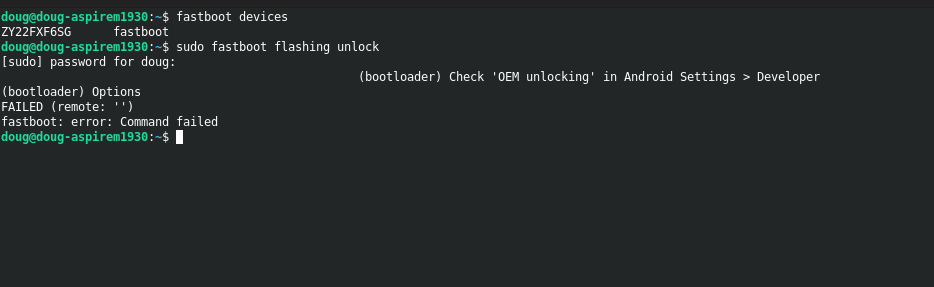
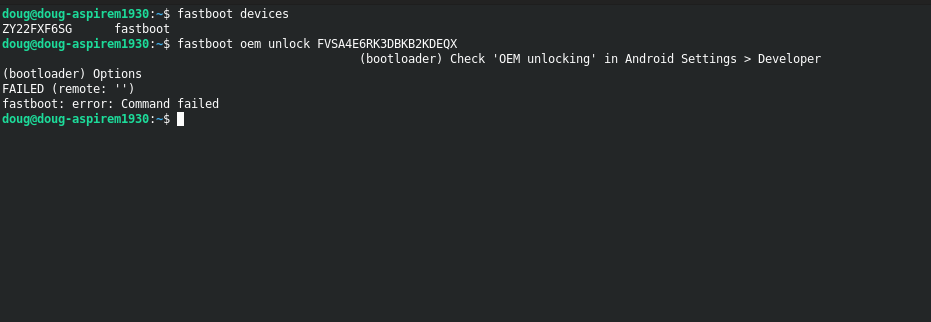
This is what I’m getting if I try unlocking
The message in your terminal is referring to needing to go into “System Settings > System > Developer” and then allow “OEM Unlocking” which will appear there, but of course you need a bootable system to do that!
So at this point the phone is re-locked, can’t be unlocked, and won’t boot? You may need to go back to stock Motorola firmware (I am assuming it can recover itself even though the device reports being locked?) I am still confused how this issue started, but let’s see if we can get you working!
Yes re-locked, can’t be unlocked, and won’t boot! That’s where I’ve ended up.
I’m not sure if it can be recovered but I’ve put Windows 10 on an old laptop to give it a go.
Do you know of a good guide I could follow?
Thanks
Basically, you should follow these steps during installation:
All updates under the stock firmware must be installed.
In the developer options, allow bootloader unlocking and USB debugging.
Unlock the bootloader with the individual code from Motorola.
Install iodéOS.
IMPORTANT: DO NOT LOCK THE BOOTLOADER AGAIN IMMEDIATELY AFTER THE INSTALLATION.
The smartphone must first boot with the unlocked bootloader and all updates of iodéOS must be installed again.
Once the smartphone has booted and sorted itself, go back to the developer options, activate USB debugging and lock the bootloader again via Fastboot → fastboot oem lock.
The smartphone should then boot normally even with the bootloader locked, and you can deactivate the permission to unlock the bootloader in the developer options.
Hi, thanks for your message. I’ll follow your steps if I ever get the phone to boot into the OS.
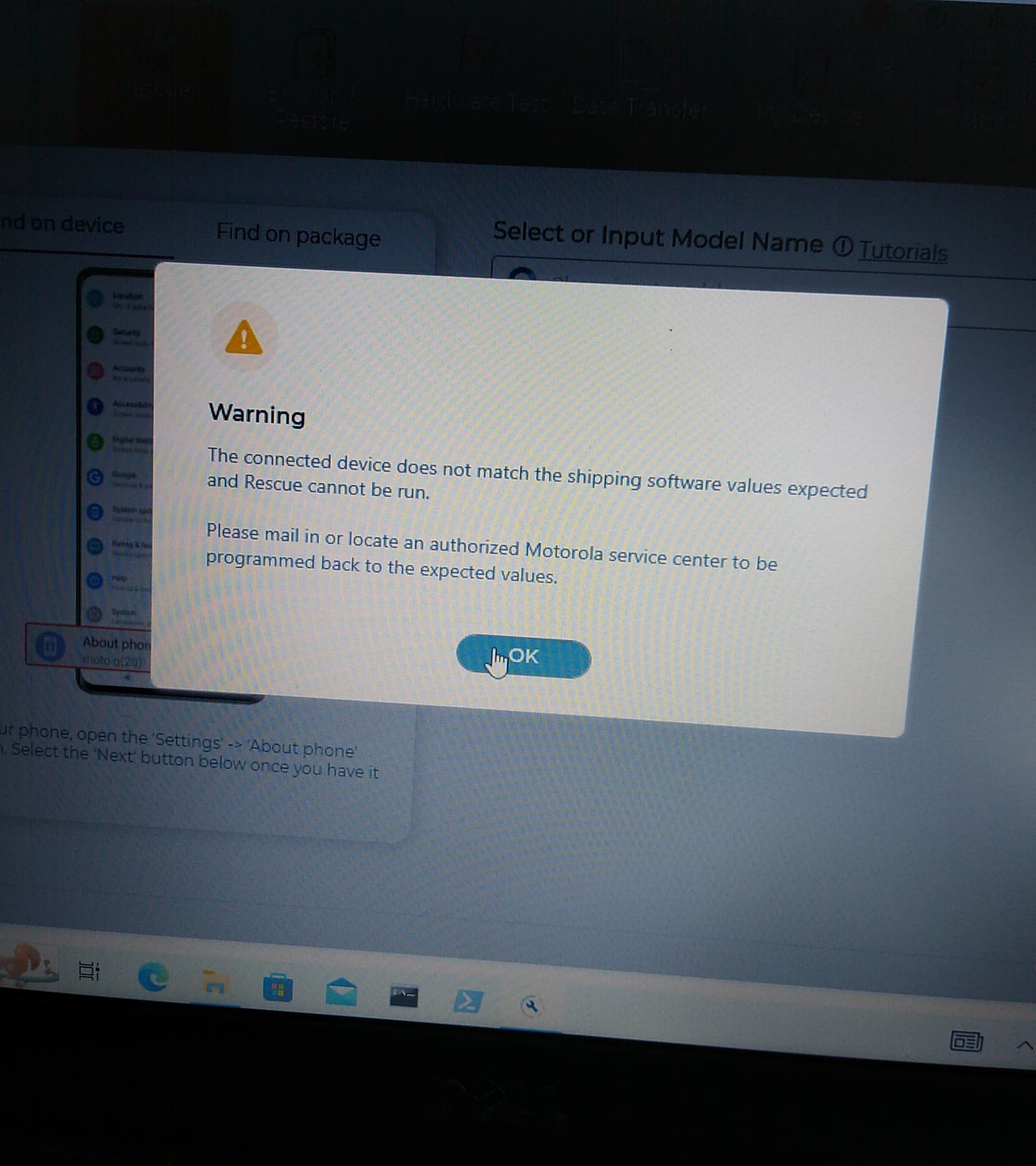
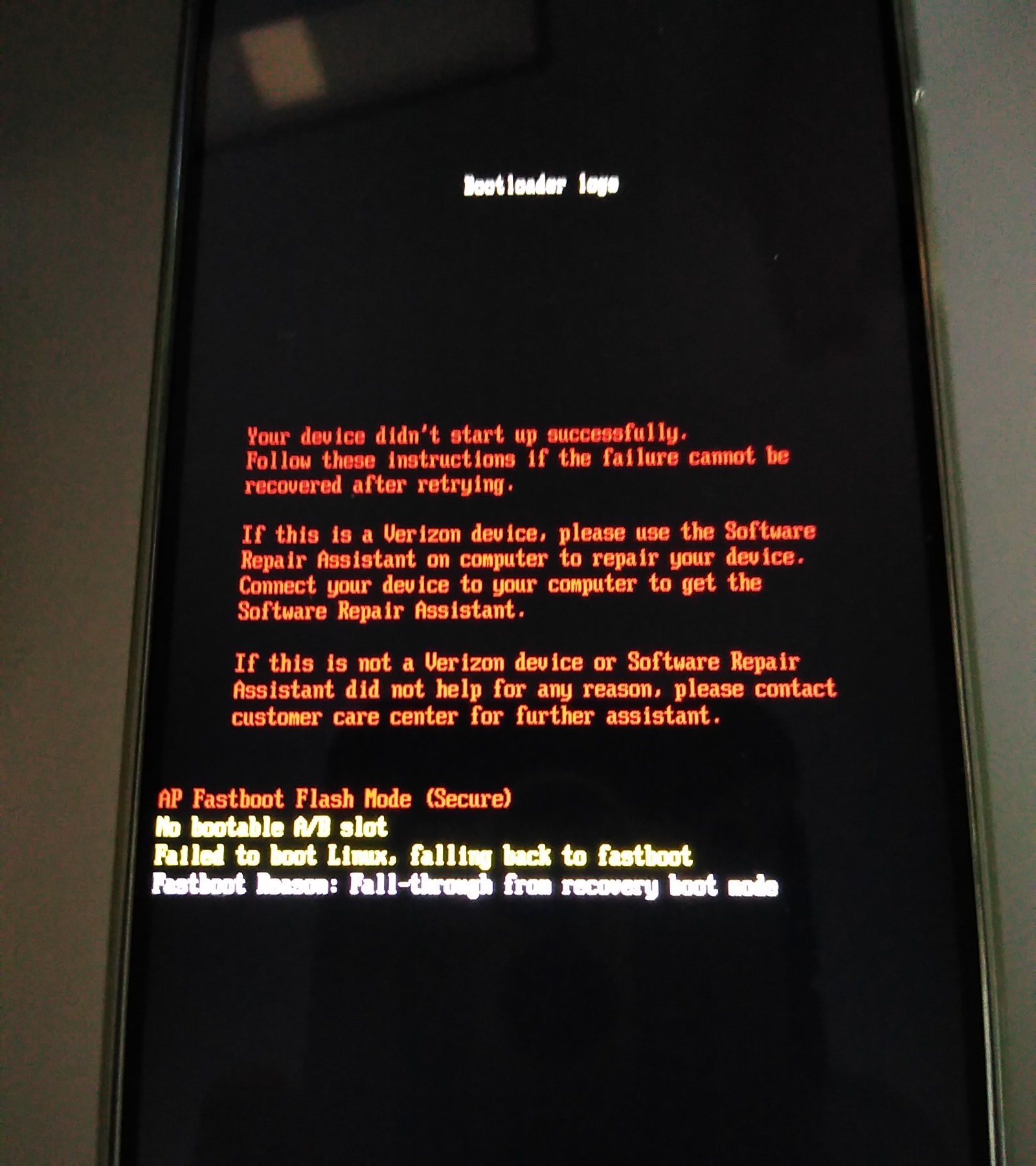
I tried the Motorola’s in-house software assistant and I get the following message
Okay, first of all: was it explained on Motorola’s help page that you unlock the bootloader with “fastboot oem unlock CODE,” or is there a different command there?
I can’t follow the instructions on Motorola’s website any further because I no longer have a Motorola. So I don’t know what comes after the first page.
Also, your pictures never show whether you can change the mode using the volume up and down buttons. Normally, it says Start or Recovery or Logs at the top.
Unfortunately, your information is always only half complete.
But it looks to me like both the smartphone and the Motorola software recognize that a different operating system is installed on the smartphone.
What logos appear when you start the smartphone? First, an error message should appear, then the iodéOS display, then the Motorola display?
You should at least be able to enter recovery mode using the volume up and down buttons…
Hi
I originally unlocked the bootloader on the page you linked to but when I try to do the process again it tells me the ‘Your device does not qualify for bootloader unlocking’. Presumably because it has already been unlocked? So I can’t get past that first page now.
When I power up the phone it goes straight to Bootloader logs in bootloader mode, no error message, no iode display and no motorola display.
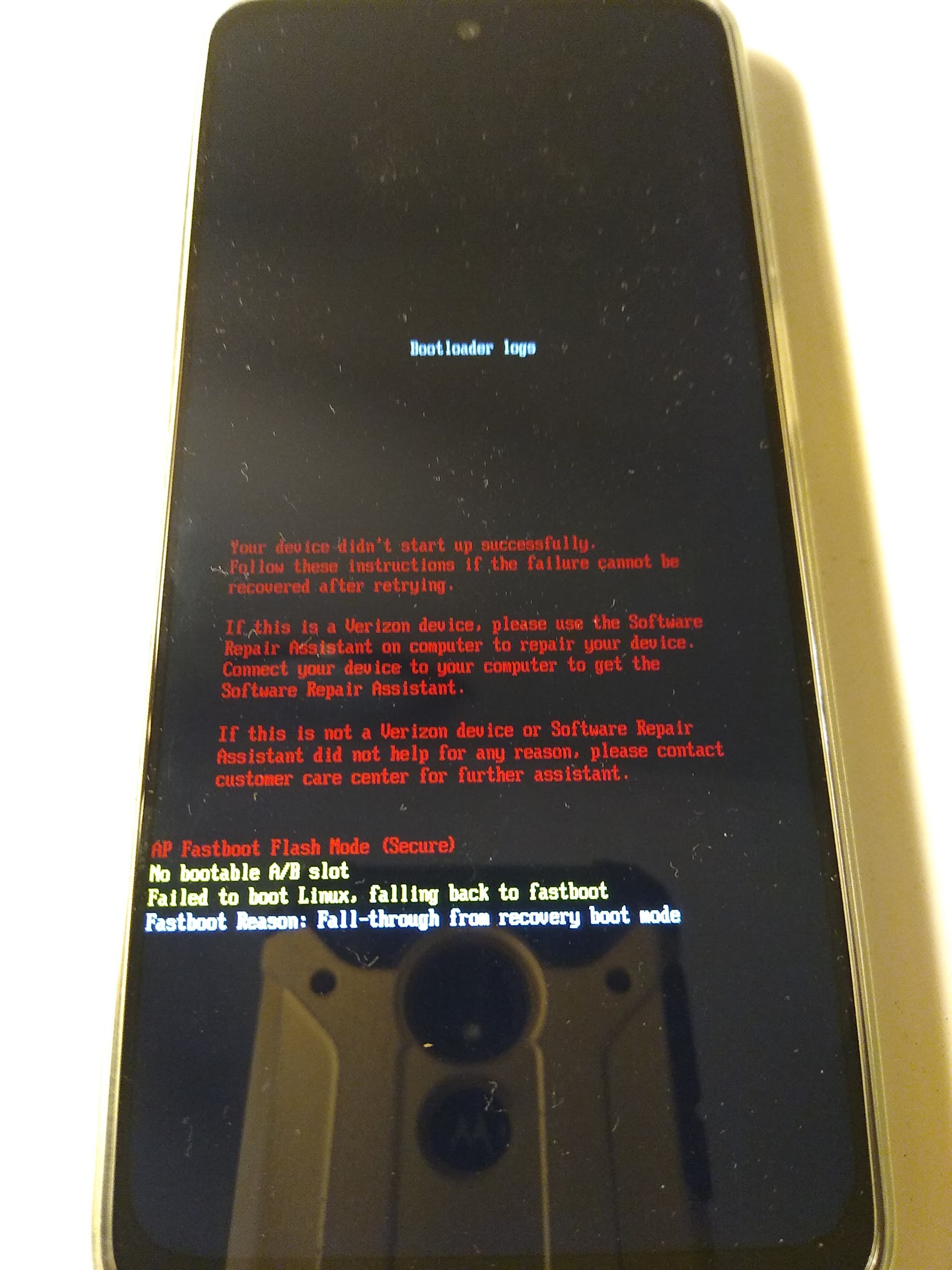
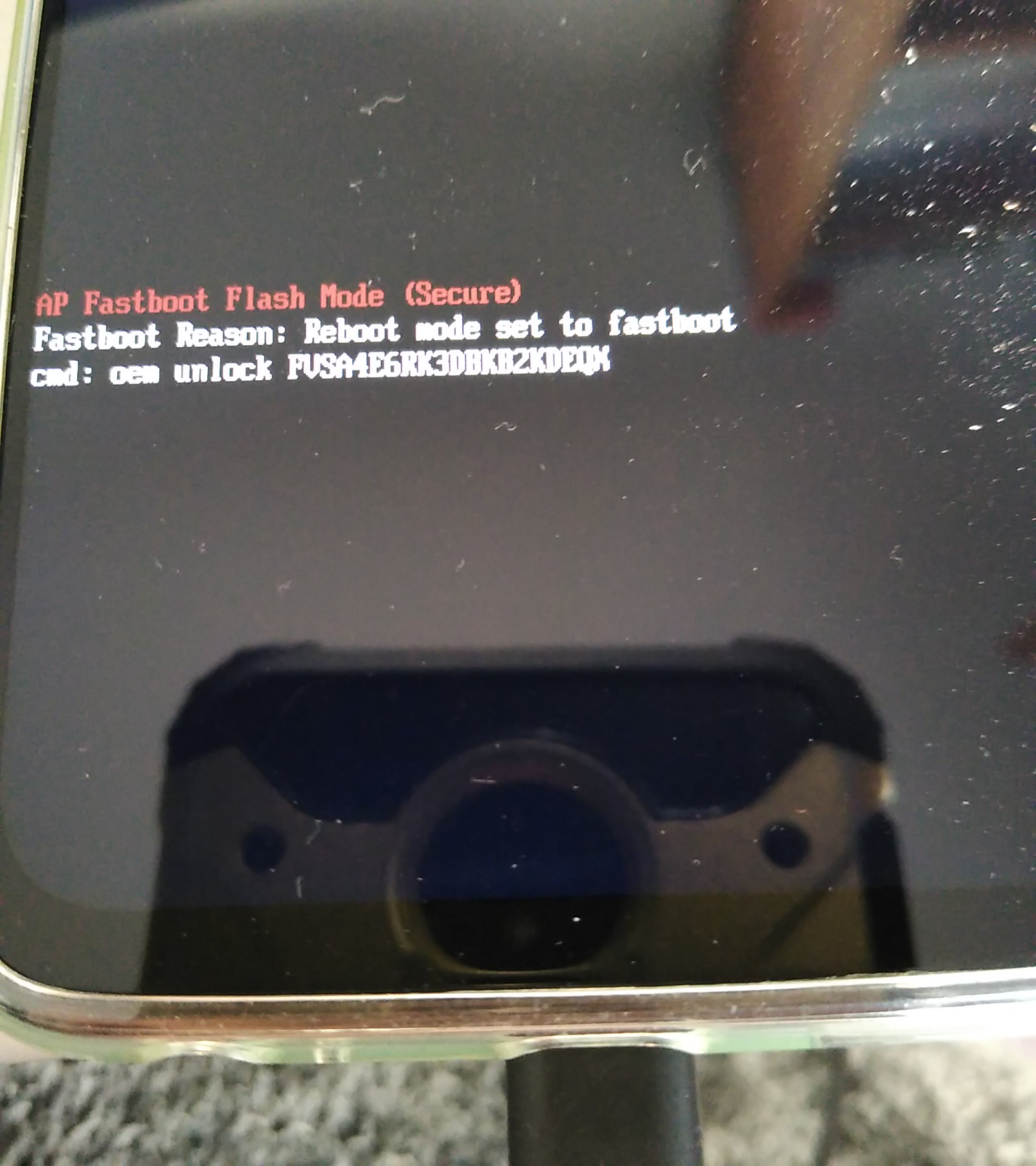
I can the use the volume up and down to power off, start, barcodes, Restart bootloader, Recovery mode and Bootloader logs. Selecting Recovery mode takes me to the display shown below
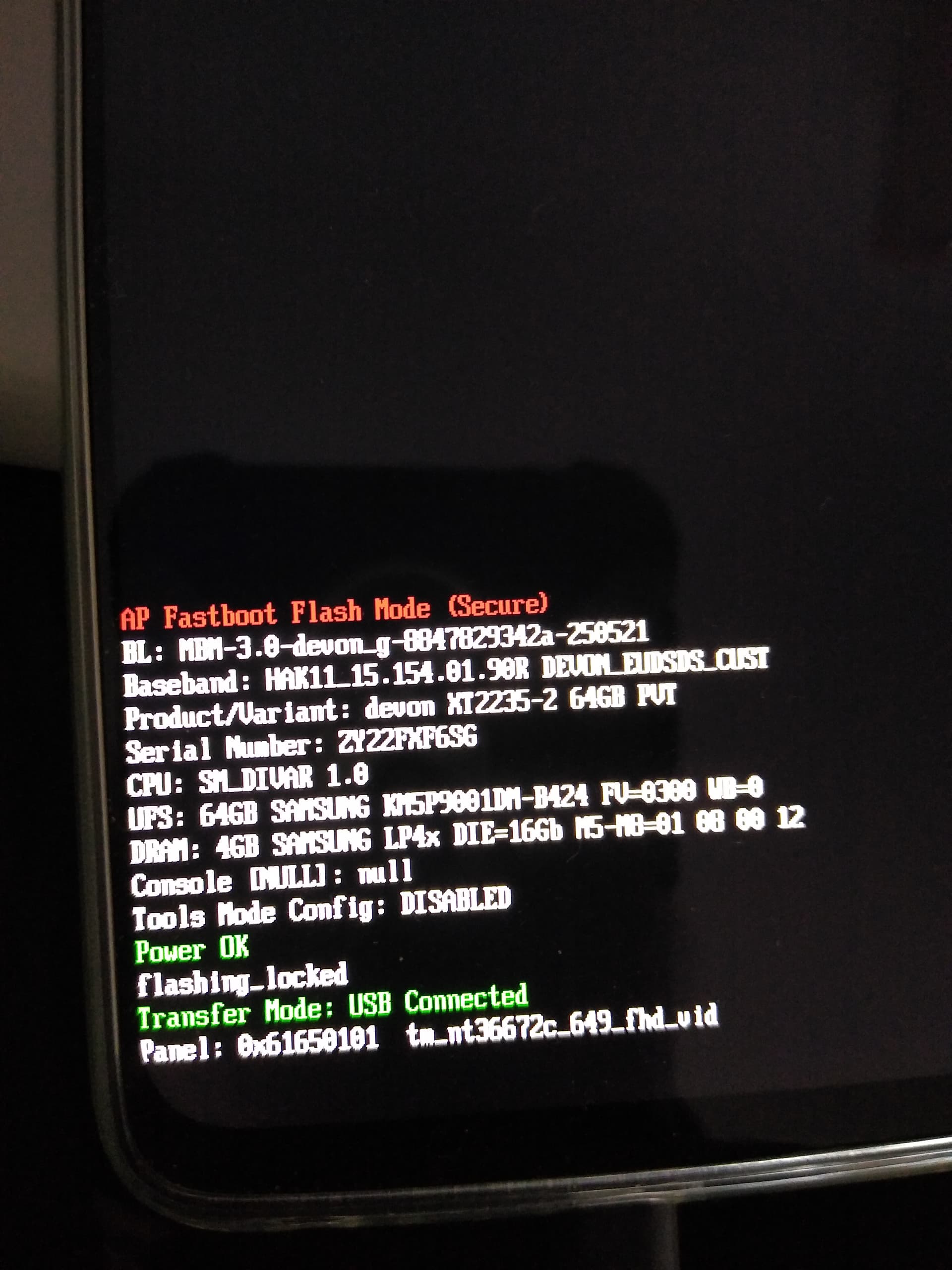
I am confused by it showing “AP Fastboot Flash Mode (Secure)”, this doesn’t look like normal fastboot mode but is directly going into some sort of flash mode?
Since the fastboot screen now doesn’t show much of anything (including not showing flashing_locked) does that mean you could possibly try installing again? Or maybe it didn’t show flashing_locked only on the screen after you attempted to apply the unlock command?
If it is still showing flashing_locked on clean boot of fastboot, and you can’t run the flash-all.sh script due to being locked, and you can’t access the device with the W10 Motorola tool to reset it then this is getting more tricky. It may be time to go to XDA Forums and try to dig around a bit for some more help. Sorry this is a bad situation it seems.
Hi, I did post in the G32 forum on XDA a couple of days ago and have just received a reply. I’ll see how I get on and report back. Thanks for your help.
Interesting the one poster said “XDA is littered with post from people who tried to re-lock the a moto bootloader and ended up like you” that is not encouraging at all! Hoping that a solution is found, then it will need a “postmortem” to recommend how to not have others fall into this same trap. Good luck!
Hi PAGER,
I have the same problem with G42. But my device starts only with unlock bootloader to IODE OS, with locked bootloader, I get a message " no bootable system found".
The information that the bootloader can be closed again after updating the Iode OS is new to me. Since I couldn’t close the bootloader after installing Iode, I left it as it was. During installation, I also received error messages regarding anti-rollback. I would like to close it, but I have some doubts because I thought that closing it would reset the data. I am very satisfied with Iode OS and would like to keep it, but I would prefer it if the bootloader were closed. Thanks